Lionel d'Hauenens
|
0
|
September 24, 2026


Time Travel Debugging (TTD) records the complete execution of a system so it can be replayed later instruction by instruction, forward and backward. But the recording engine imposes two constraints that change everything: it runs in pure TCG (software emulation, no KVM acceleration) and single-CPU (smp=1, required for deterministic record).
In other words, every instruction the guest executes is re-emulated on a single host core, and written into the trace.
On a real PC, Windows background activity is absorbed without you noticing, spread across several cores: Defender, Windows Update, telemetry, indexing, scheduled tasks, .NET precompilation (NGEN). Under the recording engine, that same activity saturates the single emulated core and floods the trace, second after second, without contributing anything to what you're trying to analyze.
A "clean" Windows VM for TTD is therefore not a comfort: it's a prerequisite. You need a guest that stays quiet: Defender and Windows Update neutralized (and re-neutralized after the cumulative KB, which resurrects them), useless services turned off, AppX removed, autounattend properly tuned, virtual devices compatible with the target recording engine, OpenSSH stripped from the deliverable, virtual disk compacted.
Except that cutting this VM down by hand is a project that takes weeks: you need to know Windows internals, the order of the install phases, edit registry hives offline, tweak a WIM image… and every step can fail silently in a hundred different ways.
With Lite VM Studio fills Epoch, that work now fits in a prompt.
Just ask the LLM:
Build me a Lite Windows 11 VM from the ISO Win11_24H2_EnglishInternational_x64.iso and the KB windows11.0-kb5061977-x64.msu.
That's all. Admin login and password are optional: Lite VM Studio uses a default otherwise (robert / robert), and prints the credentials at the end of the build, ready to copy. The Lite VM is also configured with autologin: at boot, you land directly on the desktop, no input required.
The LLM calls the integrated tool, which automatically chains:
Versions covered: Windows 10 22H2, Windows 11 24H2, 25H2 and 26H2 (build 26300.9278). These are the versions the tool is proven on, but nothing in it is pinned to a specific build: a cumulative update more recent than the ones already tested goes through without any adjustment.
No third-party tool (like NTLite) to license and drive through a GUI, no scripts to maintain, no Dockerfile to patch, no dism or wimlib to invoke by hand. Lite VM Studio picks sensible defaults and only asks for what cannot be guessed.
A build takes on the order of half an hour: that doesn't make it a black box. At any point you can ask where it stands, read its log, get a screenshot of the Windows installer as it runs, or stop it. And if that screen were to freeze, the tool knows how to detect it and wake the VM rather than leave you guessing.
Where is the build at? Show me a screenshot of the installer screen.
To quantify the gain, we audited four VMs under the recording engine's real conditions (TCG, single-CPU, cut off from the network) across two Windows versions: each time a Vanilla VM (raw Windows, just installed + KB) against the Lite VM produced by the prompt.
After a settle period (30 min), we measure for 10 min the host-side emulation CPU (the real cost to the engine, expressed as a share of one host core) and the guest's system counters.
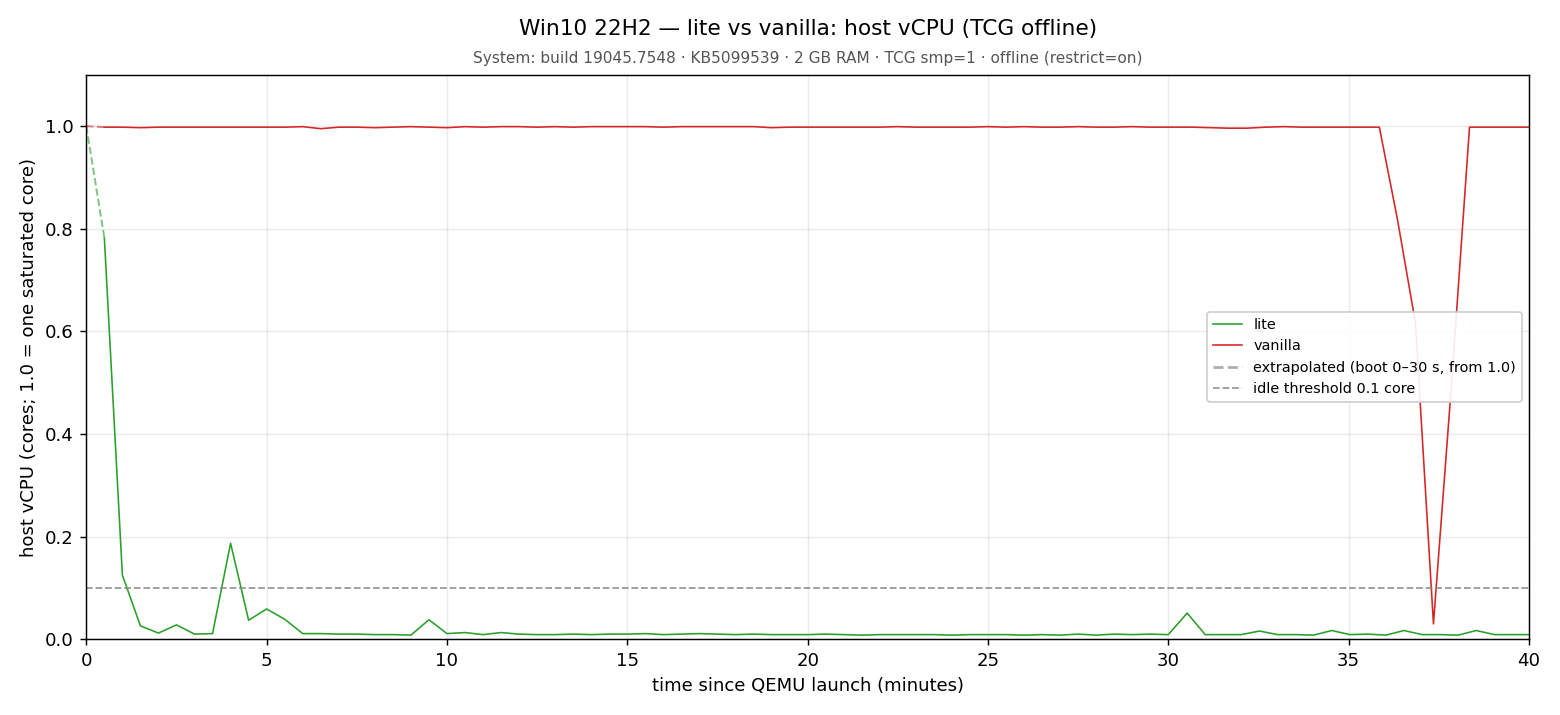
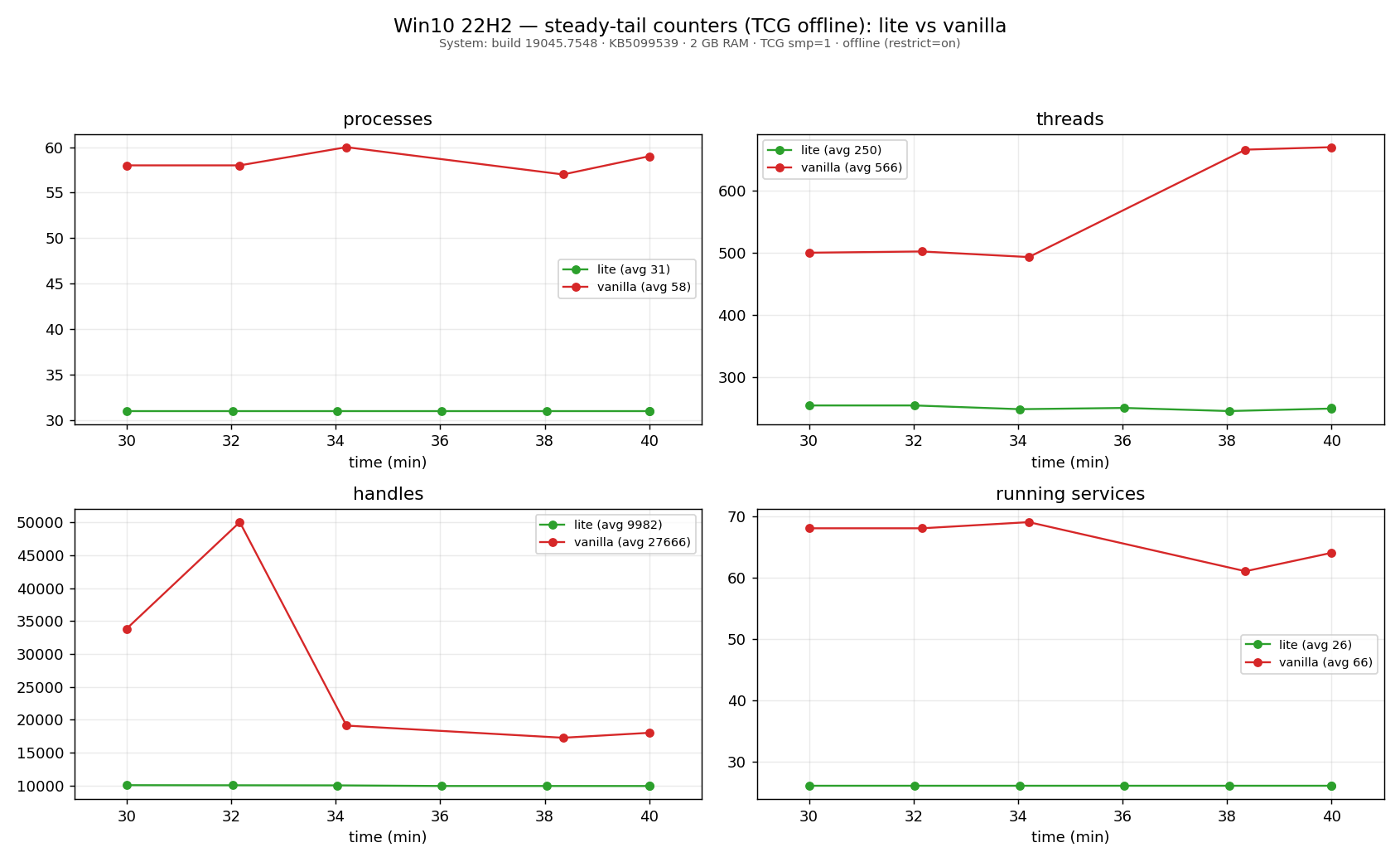
Windows 10 22H2 (build 19045.7548, KB5099539):
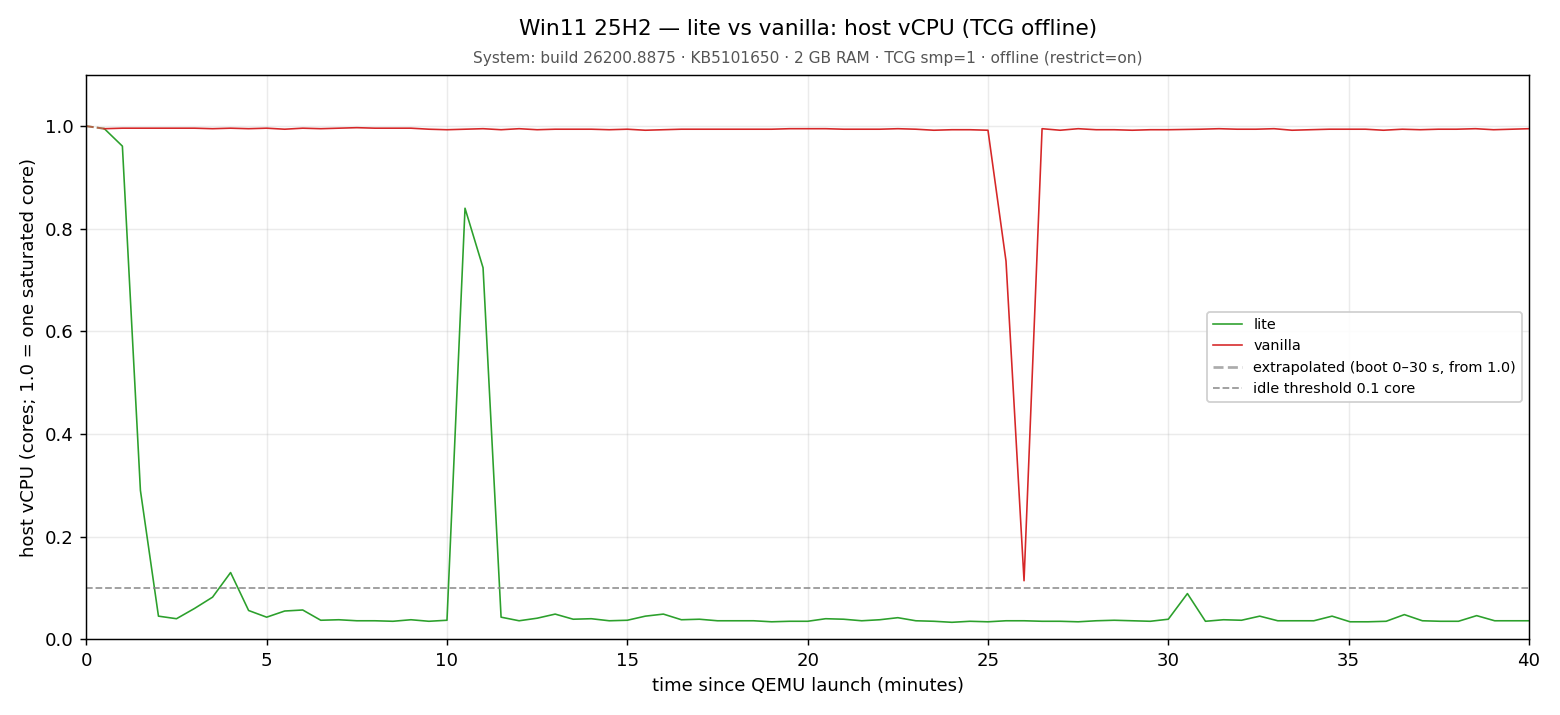
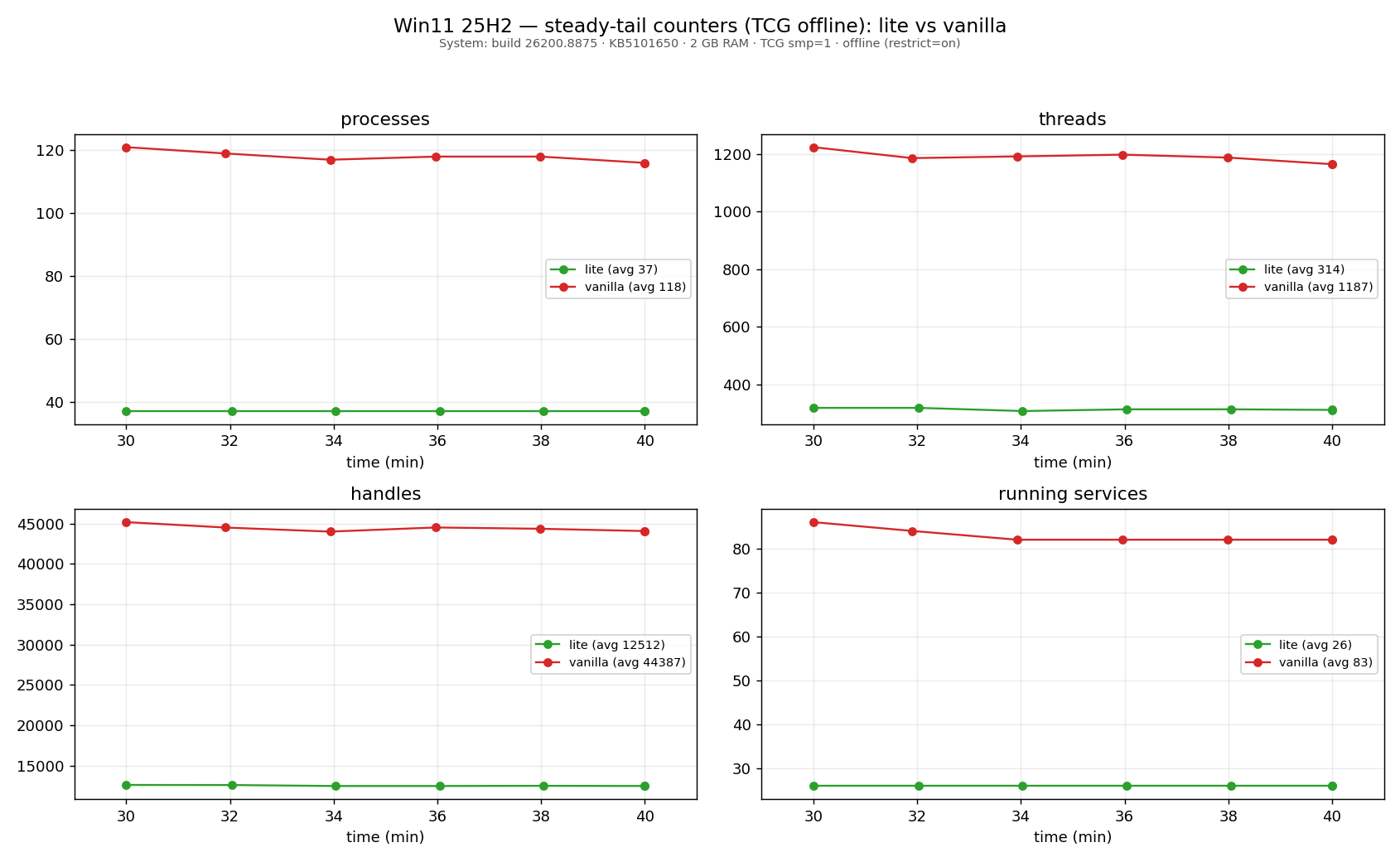
Windows 11 25H2 (build 26200.8875, KB5101650):
The emulation-CPU curve over time is the most telling. The Lite VM drops toward zero within a few minutes and stays there; the Vanilla stays pinned at ~1 full core for the whole measurement, even though it is cut off from the network (it's merely spinning on its own internal activity):
Same gap on system objects (correlated one by one when you walk back in time through the trace): the Lite handles two to four times fewer, and in a stable way (the Vanilla, by contrast, fluctuates with its background activity):
Concretely, for a TTD record on the Lite VM:
Method note: "emulation CPU" is the host-side cost (the core emulating the guest), not the Task Manager figure inside the VM. It is precisely the quantity that drives trace size and replay time.
The minimal prompt already gives you a usable VM. But the same interface accepts parameterized requests, in natural language, with no configuration schema to memorize. A few examples:
The LLM translates these requests into concrete tool parameters: multiple keyboard layouts, specific target build, disk size, offline/online variant, locale, custom account, pre-installed application, file dropped at build time.
For an application, Lite VM Studio detects the installer type (MSI, Inno, NSIS…) and the silent-install mode; when in doubt, it stops rather than installing blindly. Technical option names stay on the tool side; on the user side, you stay in natural language.
Once the Lite VM is produced, the typical reverser scenario is: "I want to record the execution of such-and-such binary". Lite VM Studio lets you drop files into the VM without booting it: the virtual disk is modified offline, through a controlled access.
The previous prompt (with the malware wannacry.exe already dropped) shows you can ask for everything at build time. But you can also break it down, which is particularly useful to iterate on inputs without rebuilding the VM: a full build takes time, dropping a file takes seconds. Once the Lite VM is built, you can run ten different binaries through it for ten successive records, without ever restarting the production chain:
Drop ~/work/payload.exe onto the robert account's desktop in the VM out/build-offline.qcow2.
While you're at it, also add the folder ~/work/inputs/ at the same location: I'll need the input files for the run.
And it's ready to record. No VM to boot for the prep work, so no boot noise in the trace tied to that prep: what's on the virtual disk when the record starts is exactly what the user asked to put there, nothing more.
Producing the VM is only half the journey: it exists to be recorded. That is where Epoch Studio comes in, where your virtual machines, your traces and your investigations all live in one place. The deliverable that comes out of Lite VM Studio imports as-is: it is a standard qcow2, with no conversion, no reconfiguration, no descriptor to write.
A fresh project is a blank page - it says so itself - and the Import VM button is there for exactly that:
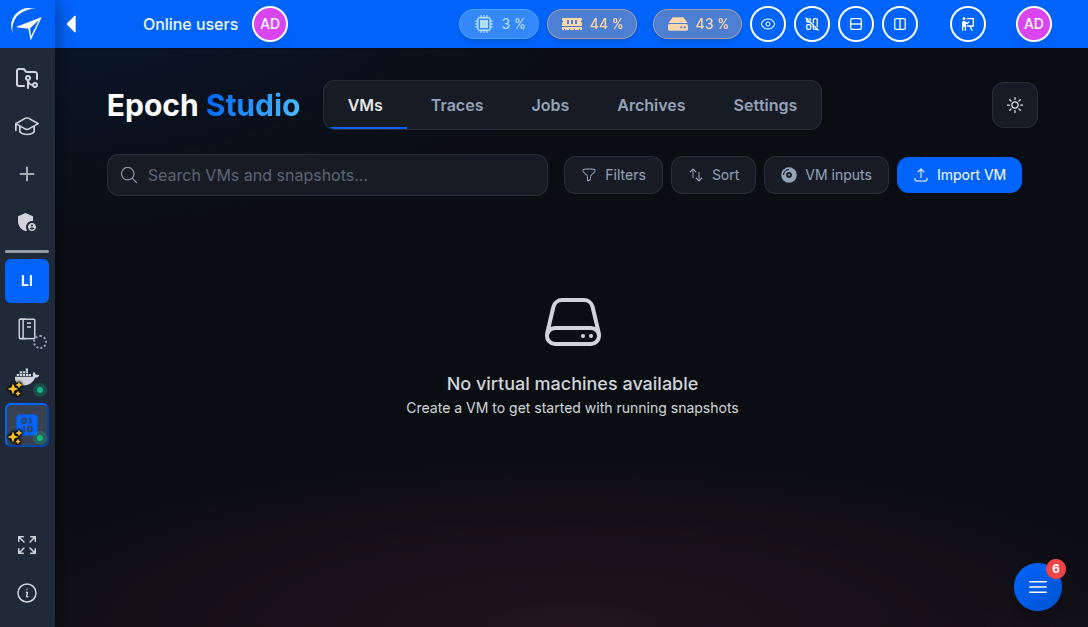
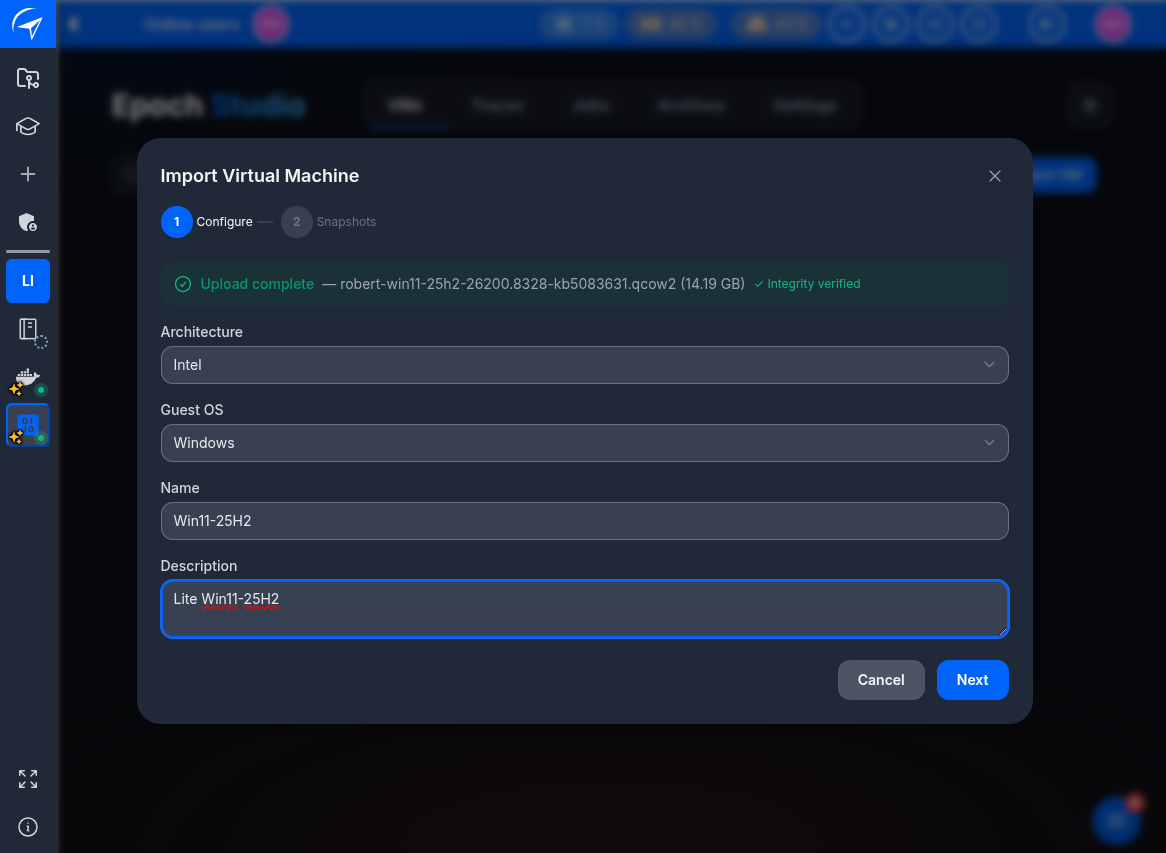
You point at the .qcow2 and the upload starts. While the disk goes up, you fill in what will identify the machine inside the project: architecture, guest OS, name, description.
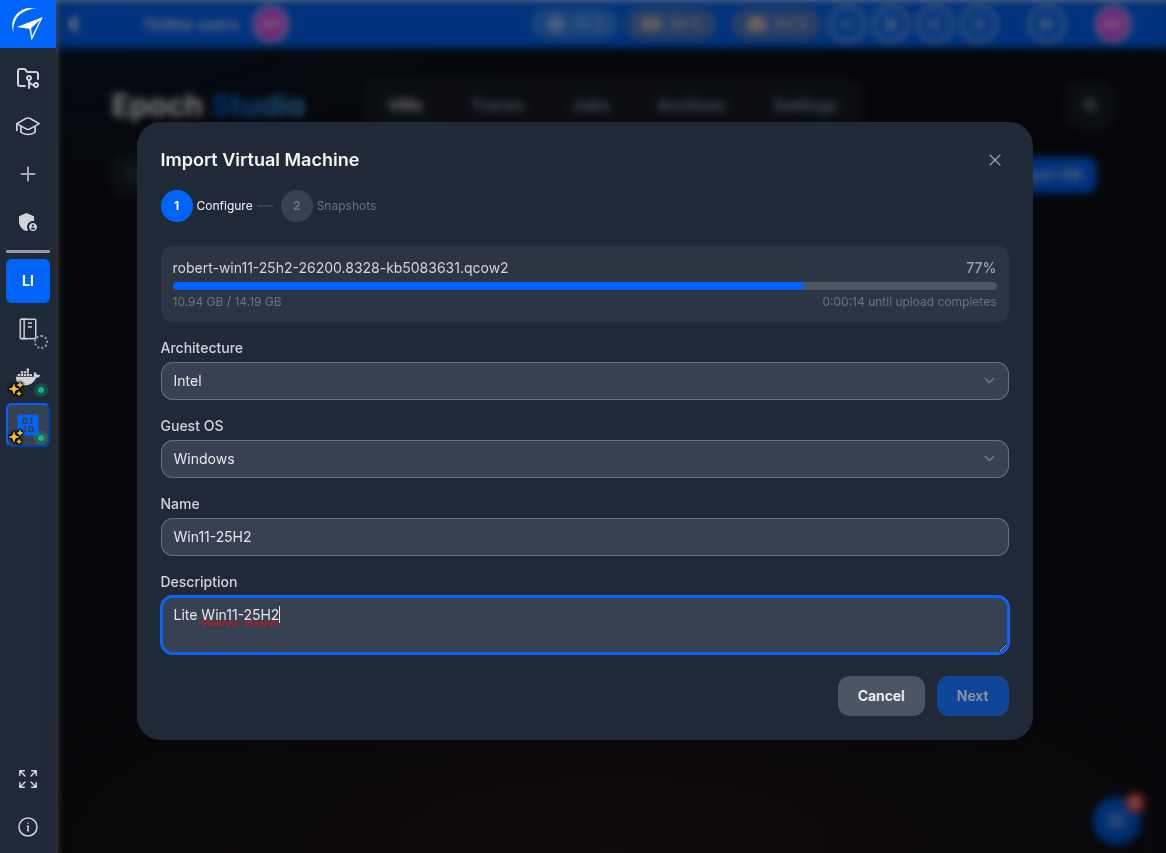
The transfer is not the step to dread: the progress bar reads 14 seconds left at 77 % of a 14 GB deliverable. Uploading a complete Lite VM is a matter of tens of seconds, not of a coffee break. Epoch Studio then verifies the integrity of what it received.
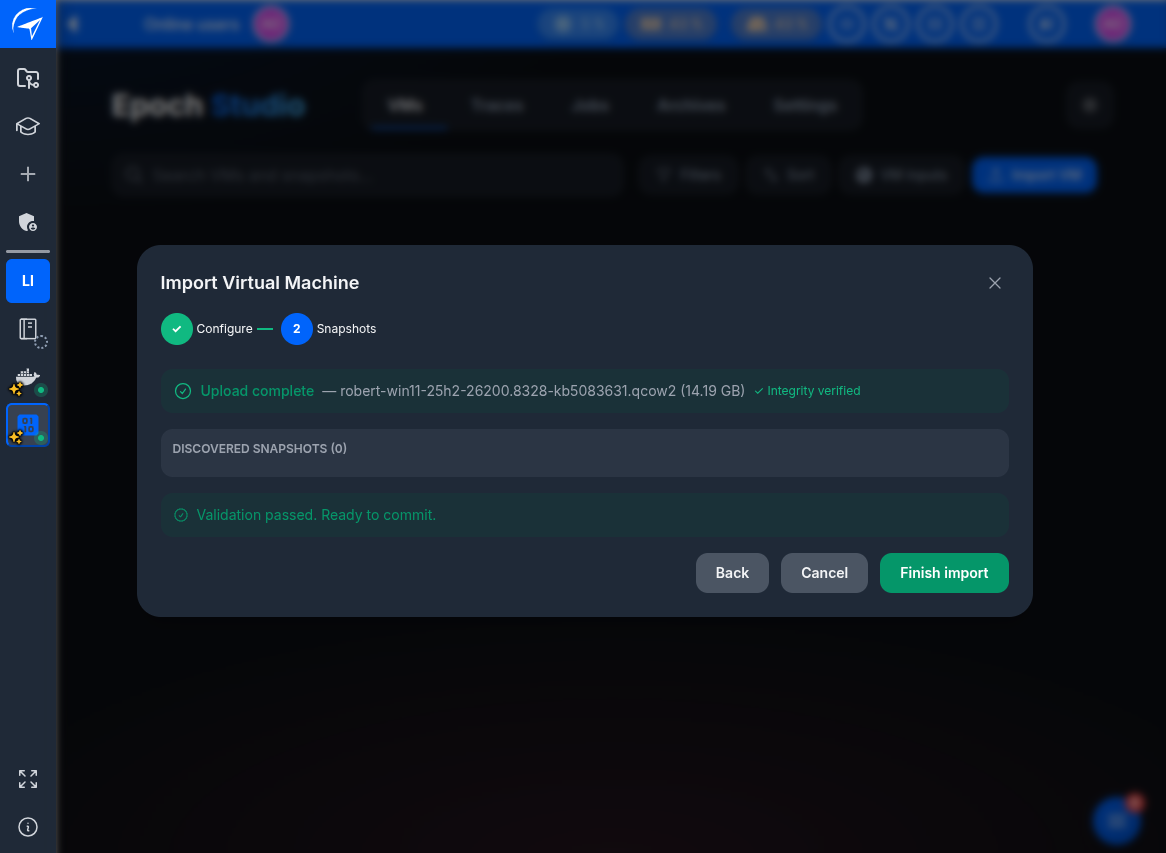
Last step: the platform inspects the image, lists whatever snapshots it might contain - none, for a fresh deliverable - and confirms it is usable. All that is left is to commit.
And the VM is in the project, ready to start:
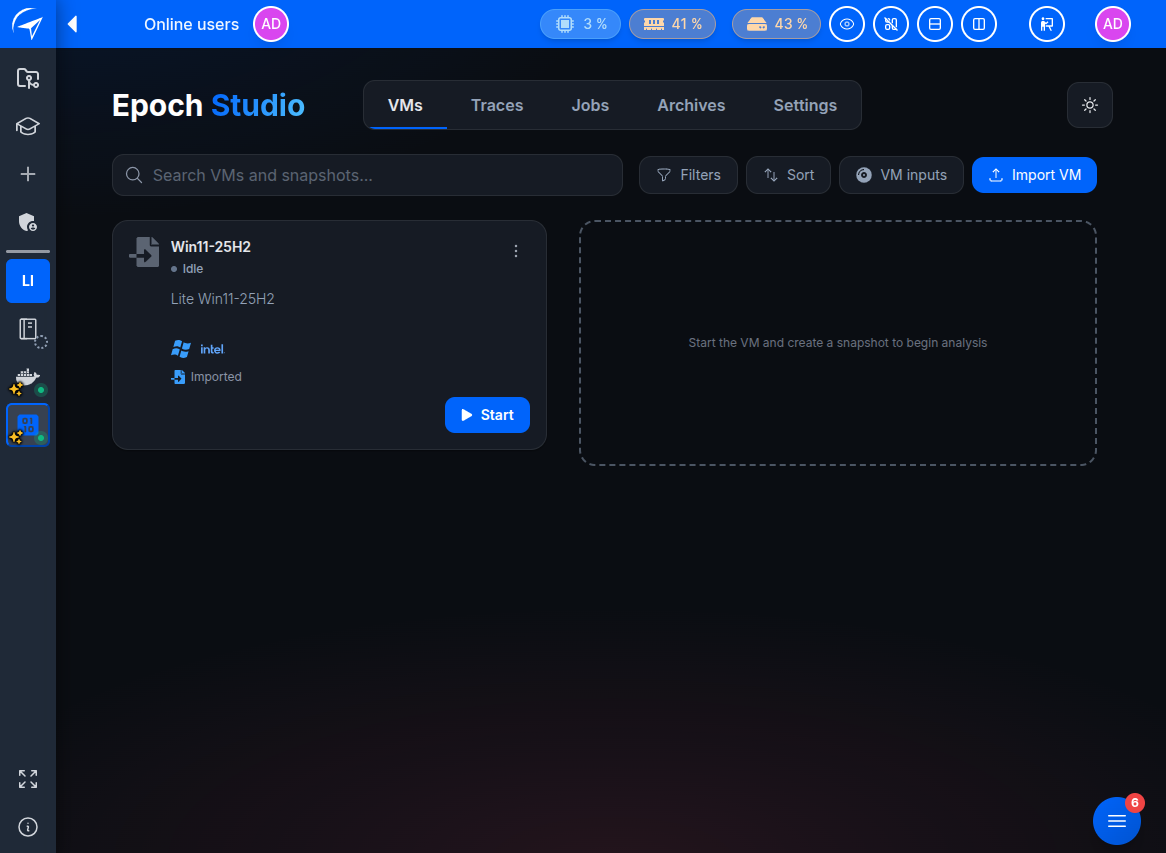
Starting it is driven from that card. You choose whether to resume from an existing snapshot or start from scratch, and above all you tick the box that matters here: Recordable. It boots the VM in the record engine's topology - single-core, pure TCG - that is, exactly the conditions the Lite VM was carved for. The advanced options, for their part, come down to three settings: memory, network, UEFI.
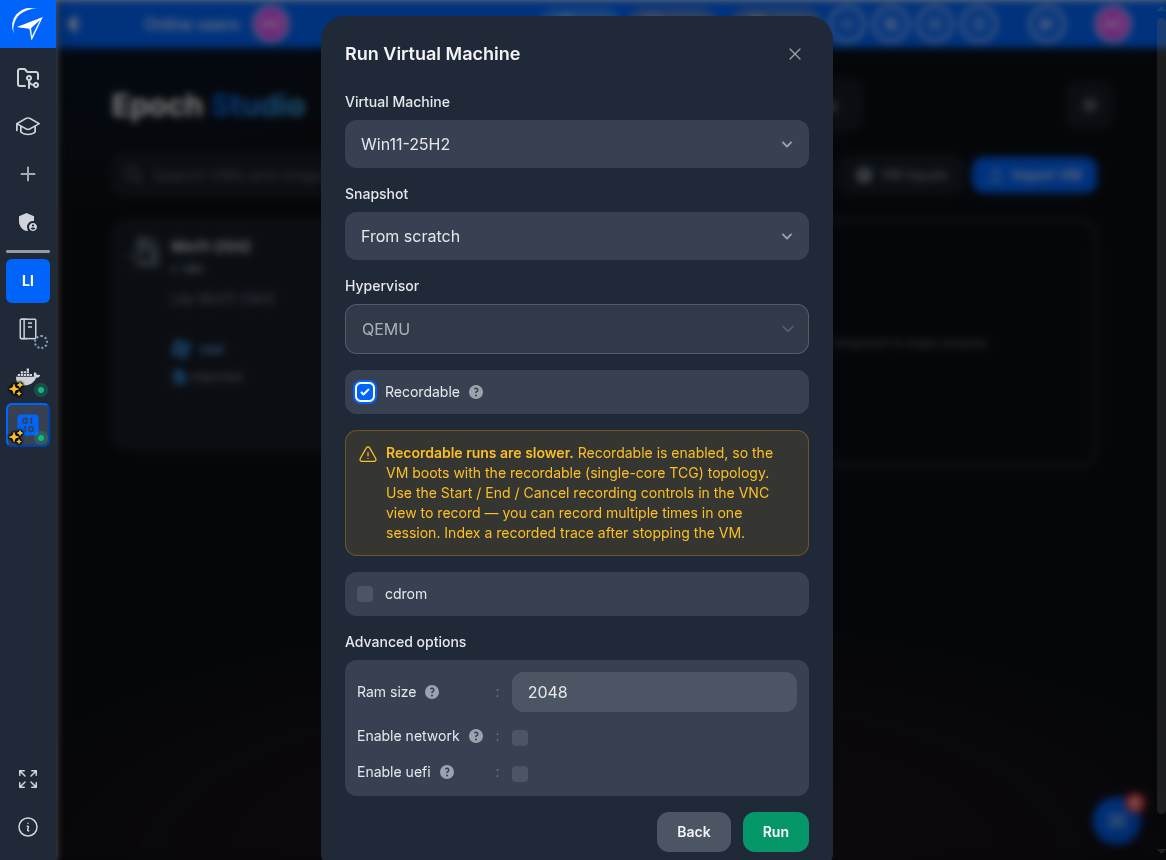
Moments later, the VM is running in the browser, right next to its project:
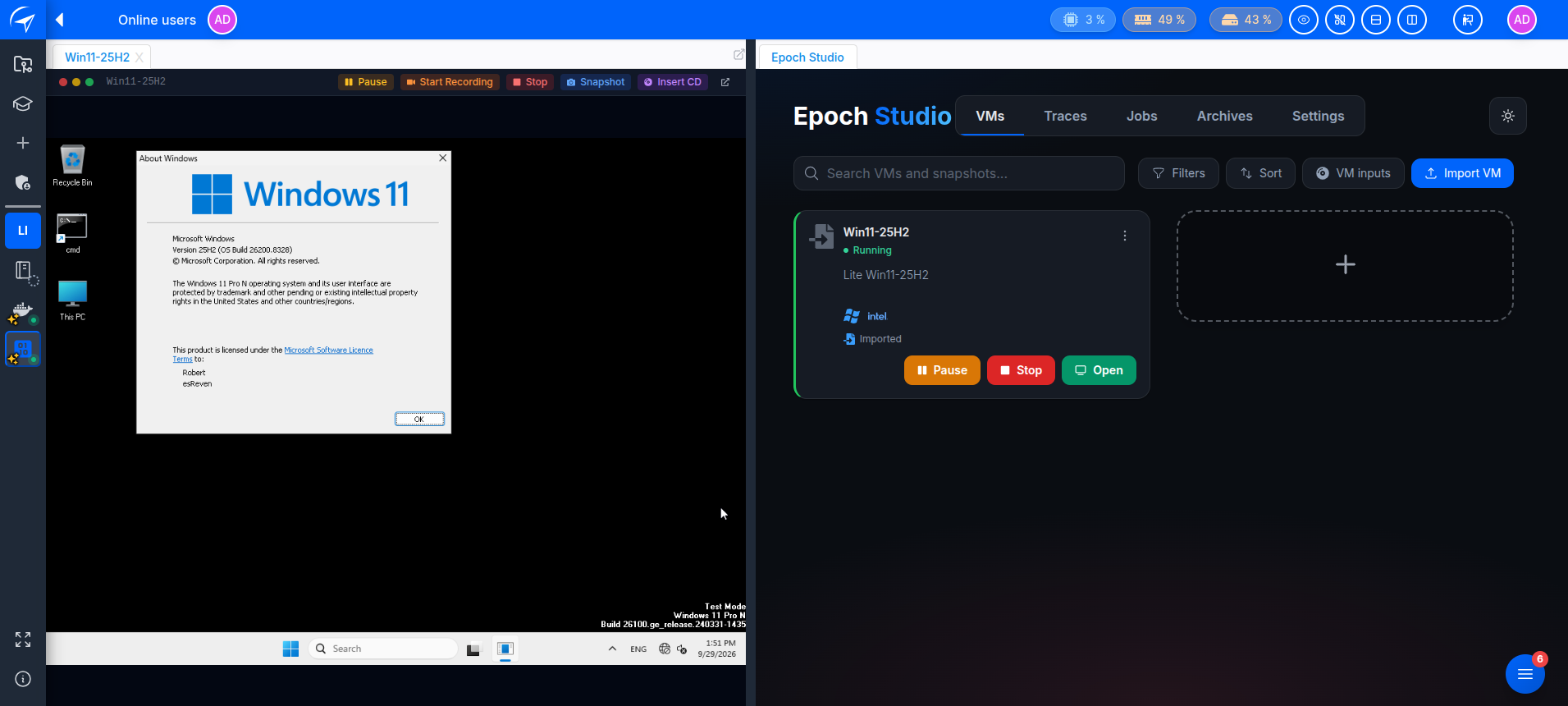
From there everything is one click away, without ever leaving Epoch Studio:
From the end of the build to a Windows desktop ready to be recorded, a few minutes go by: the time to upload the disk, let it validate, and tick Recordable. Nothing to install on your machine, no hypervisor to configure, no file to convert. Lite VM Studio builds the quietest VM it can; Epoch Studio receives it, boots it under record conditions, and keeps the traces that come out.
By default, a deliverable is created with an 80 GiB virtual disk, and you can ask for another size at creation time. That is the size Windows sees: the file itself is dynamically allocated, it only grows as it fills up, and it is compacted at the end of the build so that it weighs no more than its minimum. But if a VM you already built ends up cramped (a large dataset to analyze, a bulky toolchain to install in the guest), there is nothing to rebuild:
Grow the disk of the VM out/build-offline.qcow2 to 100 GB.
Everything is automatic: the virtual disk is grown, the partition extended, and the Windows filesystem resized to match. All of it offline, without booting the VM. At the next boot, Windows simply sees a larger C:.
The same offline access works the other way around, after a record or during an investigation, to pull files out of the VM onto your workstation, still without booting it:
Pull the minidumps from the VM archive/win10-quiet-online.qcow2: I want to understand a BSOD I captured yesterday.
Pull C:\Windows\System32\ntoskrnl.exe from this Win11 24H2 build 26100.4066 VM: I want to load it in IDA to reverse a kernel routine on this exact build.
Lite VM Studio reads the virtual disk offline and copies what you ask for to a path in your workspace, a single file as well as an entire folder. The VM is never started: no parasitic modification of the disk, the artifact you retrieve is exactly the one frozen at record time.
Protections are automatic: a deliverable shipped under archive/ is read-only by default (an explicit confirmation is required to modify it), a VM in use is detected and the operation is refused, paths that try to escape the tree (..) or Windows-reserved names (CON, PRN, etc.) are rejected. A slip of the prompt can therefore neither corrupt a running VM, nor write outside the mounted disk, nor modify an archived deliverable without explicit confirmation.
And when it's the build itself you're trying to understand (not the VM), a single prompt gathers all the diagnostic material:
Bundle all the logs from the last build into an archive I can share.
Lite VM Studio produces a single .tar.gz (logs, screenshots, autounattend, VM metrics; never the large binaries), light and ready to attach to a ticket or an analysis.
Every qcow2 ships with its vm-card: a small Markdown file placed next to the disk, documenting exactly what the deliverable contains. You'll find:
In other words, the deliverable describes itself: no external note to keep up to date, no ambiguity about "which build, which KB, which password, what was added". You can audit a qcow2 months later just by reading its card.
If, despite everything, you'd like to use just a small part of its capabilities to build a plain vanilla VM, Lite VM Studio will honor your request without grumbling.
The word "vanilla" is enough to trigger a bare build: no slimming, Defender and Windows Update left active, disk not compacted. Everything else (version, edition, KB, keyboards, network) stays configurable just like for a Lite. The point here is simplicity: even outside TTD, it's the fastest way to get a clean, up-to-date, usable Windows, without touching the ISO or the install.
Build me a Windows 11 25H2 vanilla VM from the ISO Win11_25H2_EnglishInternational_x64.iso: I just want a clean, up-to-date Windows, ready to use, without fighting the ISO or the install.
Build me a Windows 10 22H2 vanilla VM with the KB KB5099539 applied: a standard test machine to check my software's behavior on an unmodified Windows (Defender and Windows Update active, as on the end user's box).
Build me a Win11 24H2 Pro vanilla VM, isolated from the network: a realistic, network-cut Windows sandbox to handle a suspicious sample safely.
Building a Lite Windows VM by hand is anything but trivial. You need to know Windows internals, know which service depends on which, understand the order of install phases, anticipate that a cumulative KB will resurrect Defender and Windows Update behind your back, edit registry hives offline, tweak a WIM image, test, start over. It's a project in itself, and one that puts most reversers off, because it's not their day job.
With Lite VM Studio in Epoch, that project disappears. You type a prompt. The VM is delivered ready, measured, ~2.5× more compact, faster to boot, and above all quiescent (~1 % of one emulated core, versus ~1 full core continuously for a raw Windows), which is the criterion that matters for TTD.
You drop your target binaries on it without booting it, you launch the record, you pull artifacts back out still without booting it. No prior knowledge of Windows internals required: the LLM drives the tool, the tool knows the pitfalls. Everything runs in a container; your machine stays untouched, with nothing to install or clean up afterwards.
You save your energy for what really matters: capturing the leanest trace possible, dense in signal and easy to replay, ready for reverse engineering.